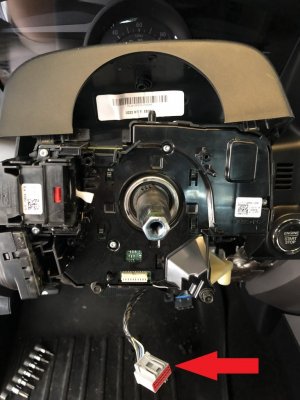
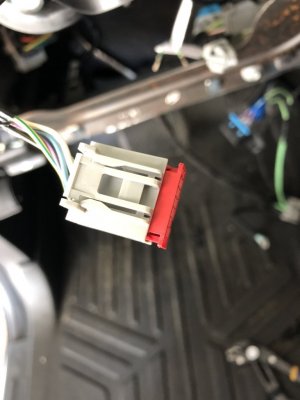
Heated Steering Wheel - Installation on my 2017

Disclaimer: Links on this page pointing to Amazon, eBay and other sites may include affiliate code. If you click them and make a purchase, we may earn a small commission.

OP
OP
East-TN

East-TN

Full Access Members
Air Force
Joined
Jan 4, 2018
Posts
533
Reaction score
269
Location
TN
You are now ready to begin the process for routing the wire harness and making the splice connections required to connect the harness to the MS +/- CAN network and to a power source.

Note: The power source should only be one that is powered when the vehicle is On or in Accessory mode...highly recommend you don't connect to a power source that is on all the time, your battery won't like it for long (dead battery if you leave the HSW on).
 
OP
OP
East-TN

East-TN

Full Access Members
Air Force
Joined
Jan 4, 2018
Posts
533
Reaction score
269
Location
TN
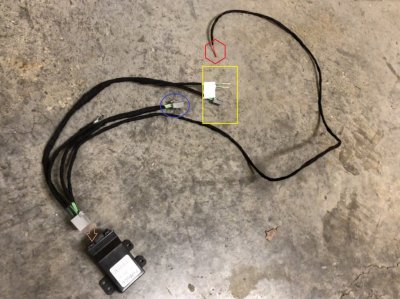
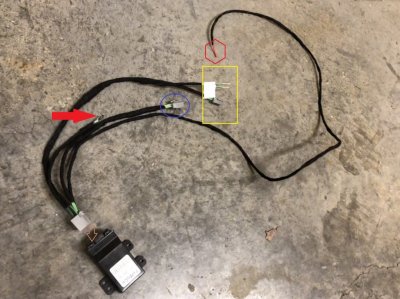
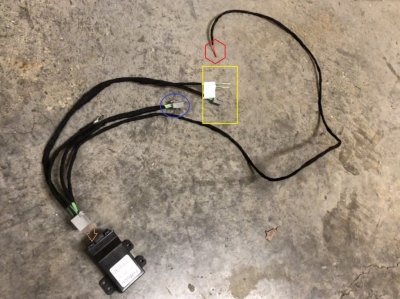
Strip back the black wrap on the wires going to the MS CAN network connector (circled in blue). NOTE: If you purchase/tell Lucas this wire harness is for the Expedition, you won't have this connector but in place you will have two wires labeled for MS + and MS -.

Wiring Harness Description.jpg

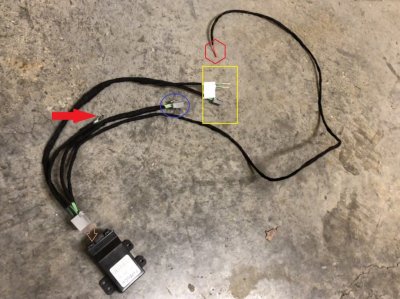
It may help if you plug in the connector to the HSW Module (see arrow in pic)...this may make it slightly easier to see/place where the wiring harness will run.
 
OP
OP
East-TN

East-TN

Full Access Members
Air Force
Joined
Jan 4, 2018
Posts
533
Reaction score
269
Location
TN
Connection to the MS CAN Network is required so that you can integrate the Heated Steering Wheel into the modules required to control the HSW function.

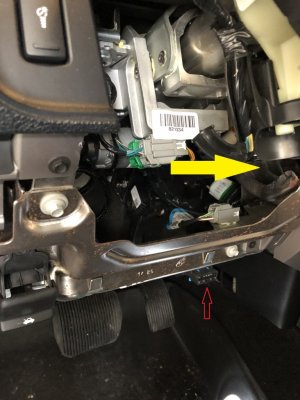
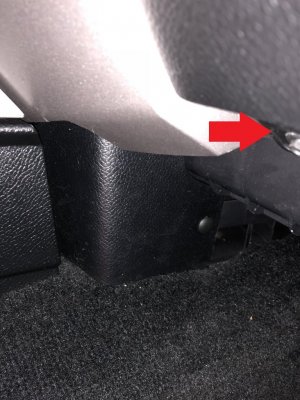
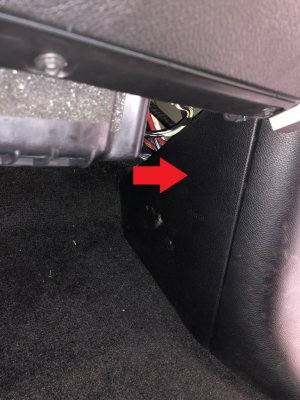
To make it easier to connect the wire harness to the MS +/- Network, I removed the two screws holding the OBD connector under the dash. See pic below:

Where to place HSW Module.jpg

The OBD connector is on the bottom of the dash, just above your right leg when you are pushing on the brake. See Red Arrow.

Pull the OBD connector down to make it easier to access the connector and strip back the insulation wrap on the back side of the connector.

Yellow arrow points to the area where I placed the HSW module and zip tied it up out of the way. Recommend you wait to zip tie the HSW Module until all your connections/splices are made and you are ready to begin putting everything back together...this will give you a little flexibility to move the wire harness/HSWM slightly when making the connections.

NOTE: ensure you place the module in an area that won't affect/impact your steering wheel tilt/extend functions.
 
Last edited:
OP
OP
East-TN

East-TN

Full Access Members
Air Force
Joined
Jan 4, 2018
Posts
533
Reaction score
269
Location
TN
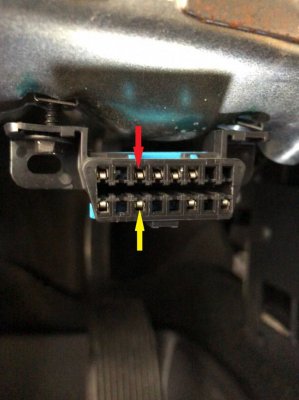
Pin 3 (red arrow) on the OBD connector is the MS Can + connection...it's a Gray & Orange wire.

Pin 11 (yellow arrow) on the OBD connector is the MS Can - connection...it's a Violet & Orange wire.

OBD Connector - Pin Locations.jpg

Once you locate the wires, use your splice connectors to secure the 2 wires from your wire harness to the respective MS + or - wires at the back of the OBD connector.

If you want, rewrap the insulation onto the wire loom at the back of the OBD connector. Install OBD connector to bottom of the dash with the two screws you removed.
 
Last edited:
OP
OP
East-TN

East-TN

Full Access Members
Air Force
Joined
Jan 4, 2018
Posts
533
Reaction score
269
Location
TN
Once you have your wire harness spliced into the MS CAN Network, run the long power wire (red in pic) under the dash/across the bottom of the dash to the right/passenger side.

Wiring Harness Description.jpg
 
OP
OP
East-TN

East-TN

Full Access Members
Air Force
Joined
Jan 4, 2018
Posts
533
Reaction score
269
Location
TN
I threaded the power wire through the area where the center console meets the dash...see pic below:

Power Wire Threading.jpg

I waited until I had the power wire connected to the power source before I zip-tied the wire in place behind the dash.
 
OP
OP
East-TN

East-TN

Full Access Members
Air Force
Joined
Jan 4, 2018
Posts
533
Reaction score
269
Location
TN
Remove the kick panel at the lower right sight of the passenger foot well, it just pulls off:

Kick Panel.jpg
 
OP
OP
East-TN

East-TN

Full Access Members
Air Force
Joined
Jan 4, 2018
Posts
533
Reaction score
269
Location
TN
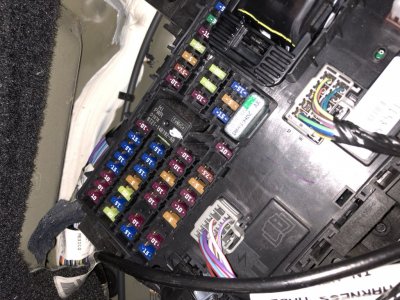
You should now be able to see the Body Control Module (BCM) :

IMG_0480.jpg
 
OP
OP
East-TN

East-TN

Full Access Members
Air Force
Joined
Jan 4, 2018
Posts
533
Reaction score
269
Location
TN
The power source I chose is hot when the Ignition is in Run or Accessory...when the vehicle is Off, there is no power to the HSW and no threat of draining the battery.

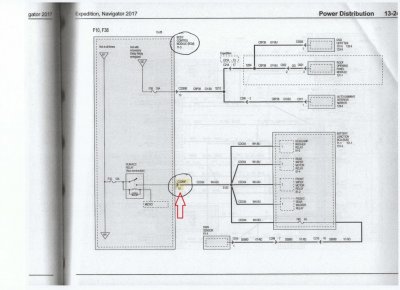
Here's the wire diagram I used to find my power source:

HSW-Power Diagram BCM.jpg

Pin 11 on Connector C2280F (see red arrow) is my power source.
 
Last edited:
OP
OP
East-TN

East-TN

Full Access Members
Air Force
Joined
Jan 4, 2018
Posts
533
Reaction score
269
Location
TN
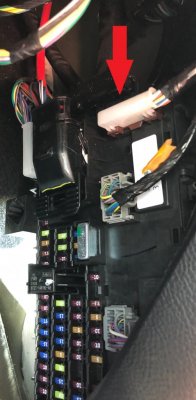
This is Connector C2280F (see red arrow) on the BCM:
Power Connection Location.jpg

As you are looking at the Module, the connector is located at the top right.

Disconnect the connector and remove the white plastic cover (it's held on by 4 plastic clips).

Peel back/cut the insulation wrap around the wire bundle to give you easier access to the wire that goes to pin 11...the wire is White & Blue in color.

Looking at the back of the connector you should see the pin numbers and then count over to pin 11...follow that wire back to an easy location to place your splice.

Splice your wire harness power wire to the wire that goes to pin 11. Use some electrical tape to rewrap the wire harness/splice area, reinstall the white plastic cover on the connector and reconnect C2280F to the BCM.

Reinstall the kick panel.
 
OP
OP
East-TN

East-TN

Full Access Members
Air Force
Joined
Jan 4, 2018
Posts
533
Reaction score
269
Location
TN
You should now have the MS CAN Network connected and power connected to your wire harness. Next step is to connect the ground wire (red arrow) of your harness to a ground location under the dash.

Wiring Harness Description.jpg

There are several areas you can connect the ground under the dash, so pick the area that works best for you...sorry, but I didn't take a pic of this step...it should be easy to identify a ground point under the dash and near the OBD connector.
 
OP
OP
East-TN

East-TN

Full Access Members
Air Force
Joined
Jan 4, 2018
Posts
533
Reaction score
269
Location
TN
Now thread/run the last wires (yellow box) up the steering column to the clockspring area:

Wiring Harness Description.jpg
 
OP
OP
East-TN

East-TN

Full Access Members
Air Force
Joined
Jan 4, 2018
Posts
533
Reaction score
269
Location
TN
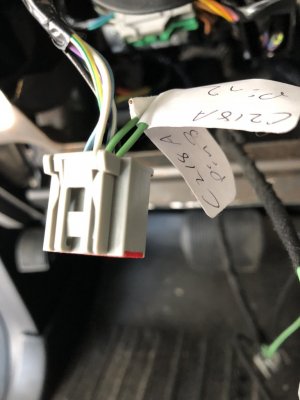
The two pins are labeled for Connector C218A...which is the connector that plugs into the clockspring (see pic below):

HSW Connector with Pins 2 and 3.jpg
 
OP
OP
East-TN

East-TN

Full Access Members
Air Force
Joined
Jan 4, 2018
Posts
533
Reaction score
269
Location
TN
Use a small screwdriver/pick to pry up the red locking cover on the connector:

Clockspring Connector Red Cover.jpg
 
OP
OP
East-TN

East-TN

Full Access Members
Air Force
Joined
Jan 4, 2018
Posts
533
Reaction score
269
Location
TN
On the front of the connector you will see the pin locations labeled at #1...count over to pin locations 2 and 3, then insert the pins into the back of the connector until you feel a 'click'.

Then push the red locking cover back into place so that you should see this:

IMG_0490.jpg
 
OP
OP
East-TN

East-TN

Full Access Members
Air Force
Joined
Jan 4, 2018
Posts
533
Reaction score
269
Location
TN
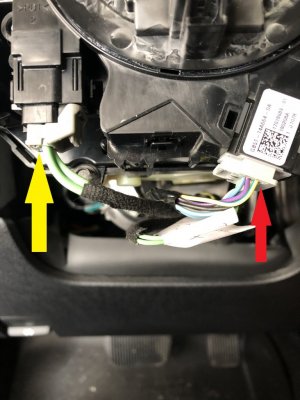
Install the new clockspring with the 4 Torx screws and connect the two connectors as shown:

New Clockspring Installed.jpg

Original connector (red arrow) with the 2 new pins inserted into the back is connected to the right plug.

New wire harness has the heated steering wheel element connector (yellow arrow) which plugs into the connector on the left.

Zip tie the new wire harness as necessary to the other wire harness running up the underside of the steering column.
 
Last edited:
OP
OP
East-TN

East-TN

Full Access Members
Air Force
Joined
Jan 4, 2018
Posts
533
Reaction score
269
Location
TN
Now you should have the harness installed and connected.

Reinstall the bottom cover on the steering column with the 3 screws you removed...then install the top cover on the steering column.
 
OP
OP
East-TN

East-TN

Full Access Members
Air Force
Joined
Jan 4, 2018
Posts
533
Reaction score
269
Location
TN
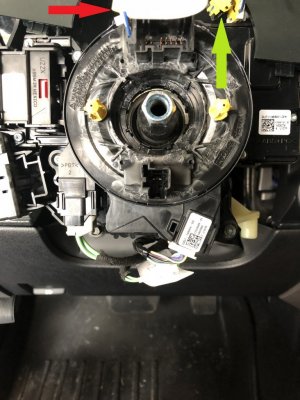
Pull the white stationary anchor (red arrow) on the new clockspring and thread the airbag connectors (yellow arrow) through the steering wheel connector as you install the steering wheel.

New Clockspring Pic with Arrows.jpg

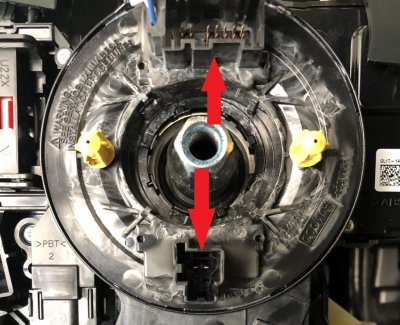
The new steering wheel will have two connectors that attach to the clockspring in the locations with the red arrows:

New Clockspring Pic with Steering Wheel arrows.jpg
 
OP
OP
East-TN

East-TN

Full Access Members
Air Force
Joined
Jan 4, 2018
Posts
533
Reaction score
269
Location
TN
Make the two connections from the steering wheel to the clockspring and then set the steering wheel in place...reattach steering wheel using the Torx bolt you removed.

Connect the airbag to the two airbag connectors on the clockspring and install the airbag onto the steering wheel.

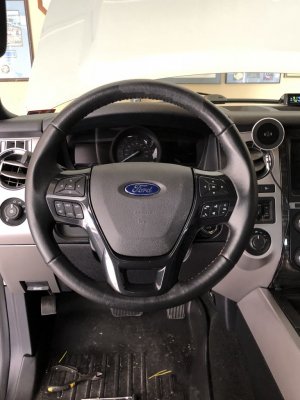
You should now be looking at something like this:

IMG_0496.jpg
 
Top